How to Connect Brevo SMTP to Your Online Store for Order Notifications
0
Providing instant email notifications when customers place an order is essential for building trust and maintaining a professional e-commerce experience. If your online store is built on the Hostatto platform, connecting Brevo (formerly Sendinblue) as your email delivery service (SMTP) ensures reliable delivery of order confirmation messages.
In this step-by-step tutorial, you will learn how to create a Brevo account, generate an SMTP API key, and configure the Brevo SMTP module inside your Hostatto store.
Step 1: Create a Free Brevo Account
- Go to the official Brevo website and click Sign Up Free.
- Fill in your account details to register.
- When prompted to choose a plan, select the Free Plan (which allows you to send up to 300 emails per day for free).
- Complete your initial profile setup by entering your company name and basic information.
Step 2: Generate an SMTP API Key in Brevo
-
- Log into your Brevo Dashboard.
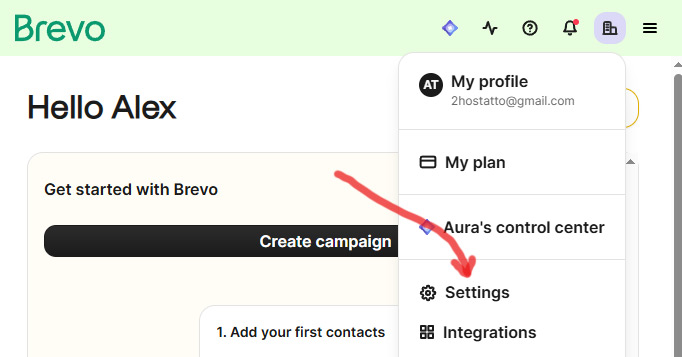
- Click on your profile icon in the top-right corner and select Settings.
-
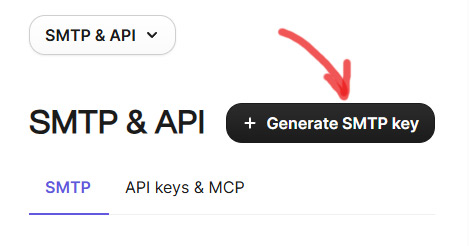
- In the left sidebar under Settings, click on SMTP & API.
- Click the + Generate SMTP key button located at the top right.
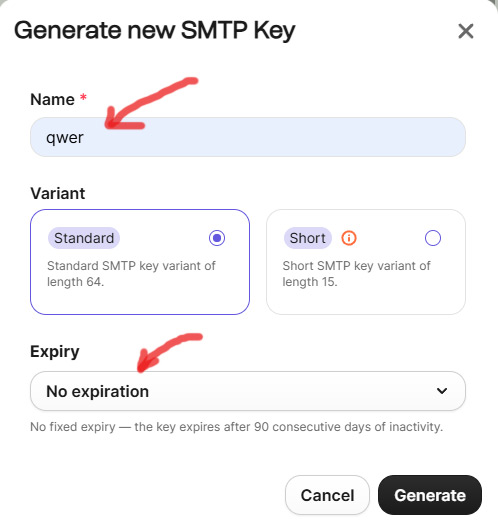
- In the key creation window:
-
- Enter a Name for your key (e.g.,
Hostatto Store Key). - Under Expiry, select No expiration so that your key remains active indefinitely.
- Enter a Name for your key (e.g.,
-
- Click Generate.
- Copy the generated SMTP key and save it safely. You will need it in the next step.
Step 3: Configure the Brevo SMTP Module in Hostatto
- Log into your Hostatto Admin Panel.
- In the left menu, navigate to Extensions > Extensions (or select Modules from the filter).
- Find the Brevo SMTP module in the list.
- Click Enable (if it is not already enabled), then click the blue Edit button.
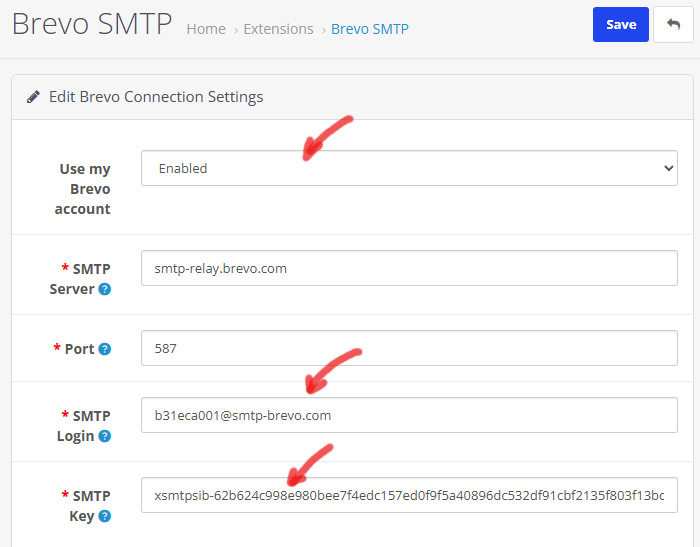
- In the module settings page, fill in the following details:
-
- Use my Brevo Connection Settings: Set to
Enabled. - Your SMTP Login: Copy your Brevo login email (found on Brevo's SMTP & API settings page under Your SMTP Settings > Login) and paste it here.
- SMTP Key: Paste the SMTP API key you copied from Brevo.
- Use my Brevo Connection Settings: Set to
-
- Click the Save button in the top-right corner.
Conclusion
That's all! Your Hostatto store is now fully integrated with Brevo. From now on, both you and your customers will automatically receive email notifications whenever a new order is placed in your store.