Hostatto Online store home page settings
Creating an engaging storefront is critical for capturing customer interest and driving sales. The Hostatto e-commerce platform provides a robust, highly customizable environment to design your homepage without needing to alter core code. This guide details how to configure your hero banners, adjust product display blocks, and manage footer navigation directly from the administration panel.
1. Managing Hero Banners
The Hero Banners module controls the large promotional images displayed at the top of your store. To access these settings, navigate to your admin panel and go to Extensions > Modules > Home page.
As shown on the home page of the demo online store, a configured home page can display a primary large banner alongside smaller promotional blocks, creating a dynamic visual hierarchy.
Configuring Banner Layouts
Inside the module, you will find three distinct tabs to manage different banner sections:
-
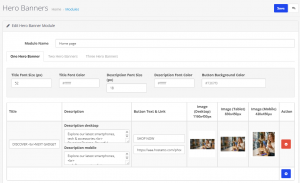
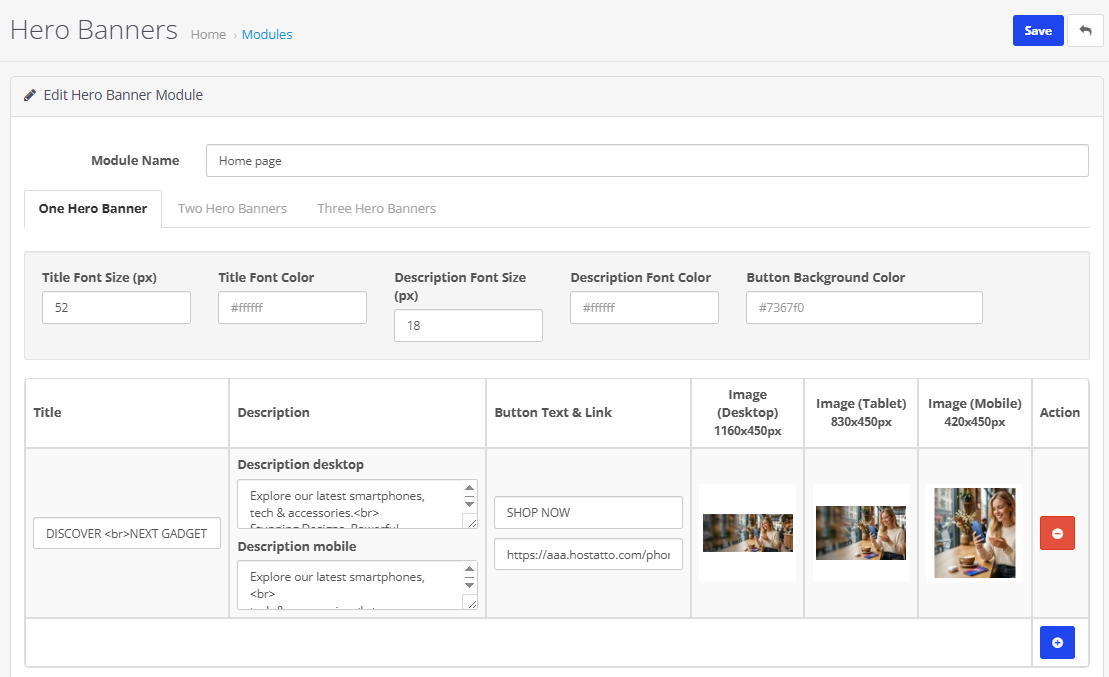
One Hero Banner: Controls the primary, full-width top banner. The backend interface for this section can be referenced in image.
-
Two Hero Banners: Manages two adjacent promotional blocks typically placed below the main banner.
-
Three Hero Banners: Manages a row of three smaller promotional blocks.
Adding and Editing Banner Content
Adding New Banners
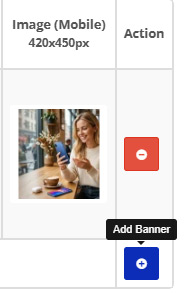
If you wish to display a rotating carousel of images rather than a single static banner, you can easily add more slides. Click the blue button visible in the bottom right corner of the module interface, as shown in the image
Text Customization
You can tailor the title, description, and font parameters directly within the module. If a line of text is too long, insert the standard HTML tag <br> to force a line break. The platform intelligently provides separate description fields for desktop and mobile devices, ensuring optimal readability across all screen sizes.
Button Configuration
Each banner can feature a prominent Call to Action (CTA) button. You can define the button text, background color, and target URL. If you prefer a cleaner look without a button, simply leave the button text field completely blank. The banner image itself will remain clickable and route users to the specified link.
Responsive Image Uploads
To ensure fast loading speeds and crisp visuals, the platform allows you to upload three separate image files per banner: one for Desktop (recommended 1160x450px), one for Tablet (830x450px), and one for Mobile (420x450px).
2. Configuring Home Page Product Blocks
Beyond the hero banners, the lower sections of your homepage are driven by dynamic product feeds and system settings. To modify these blocks, navigate to System > Settings and edit your store layout.
(Visual Reference: For a clear view of the backend configuration panel for these sections)
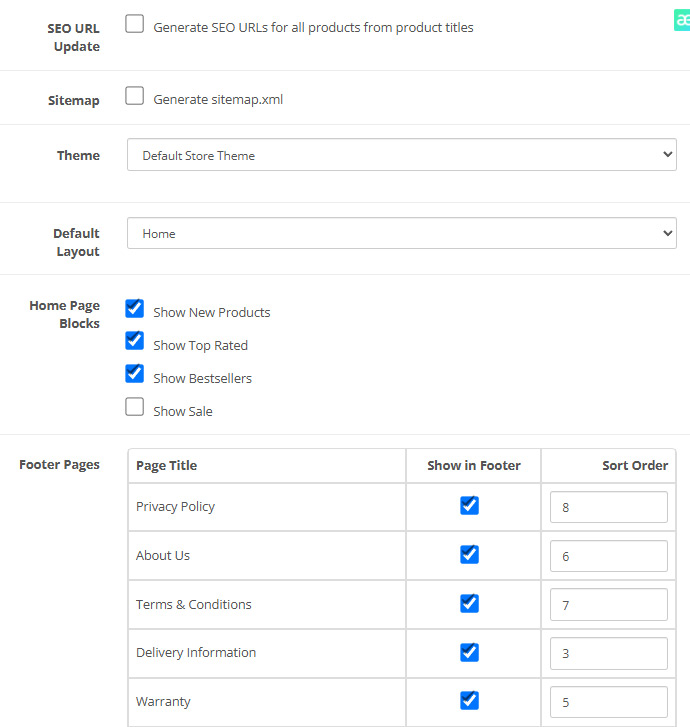
In the Home Page Blocks section, you utilize simple checkboxes to toggle the visibility of dynamic product carousels:
-
Show New Products: Displays the most recently added catalog items.
-
Show Top Rated: Highlights products with the highest customer review scores.
-
Show Bestsellers: Automatically pulls in the most frequently purchased items.
-
Show Sale: Creates a dedicated block for items currently featuring promotional pricing.
Unchecking any of these boxes and saving the settings will instantly remove the corresponding section from your live storefront.
3. Footer Pages and Alternative Layouts
The footer is a vital navigation area for policy documents, contact information, and customer service links. On the same System Settings page, locate the "Footer Pages" section. Here, you can determine exactly which informational pages (e.g., Privacy Policy, About Us, Terms & Conditions) appear in the footer.
Use the Sort Order numerical fields to arrange these links logically. Lower numbers will appear higher or further to the left, depending on your theme's structure.
Switching Core Layouts
The system frequently ships with multiple pre-designed homepage structures. In the "Default Layout" dropdown menu, you can switch between "Home" and "Home 2" (or other installed layout templates). Selecting an alternative layout will instantly restructure the homepage framework, shifting how modules and content blocks are distributed on the screen. Ensure you save your changes to apply the new layout globally.